Getting back to digital HAM radio after being away since Summer Field Day 2026
Well, Summer Field Day 2026 was fun, a bit of work for field day setup, and a blast with fellow operators.
But life got busy and HAM radio was kind of out of the running for the top thing I needed to do today. I finally am getting back to it!
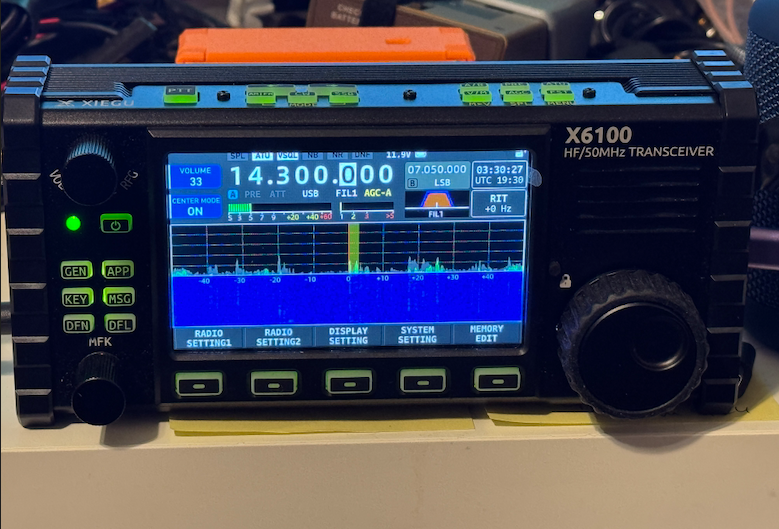
On the long list of projects I wanted to get into was using DigiPi (https://craiger.org) and the Xiegu X6100 I picked up from Huntsville Hamfest in 2024 (where did the time go!?)
Should be easy...right? Well not really as easy as "out of the box working" but it does work better than expected!
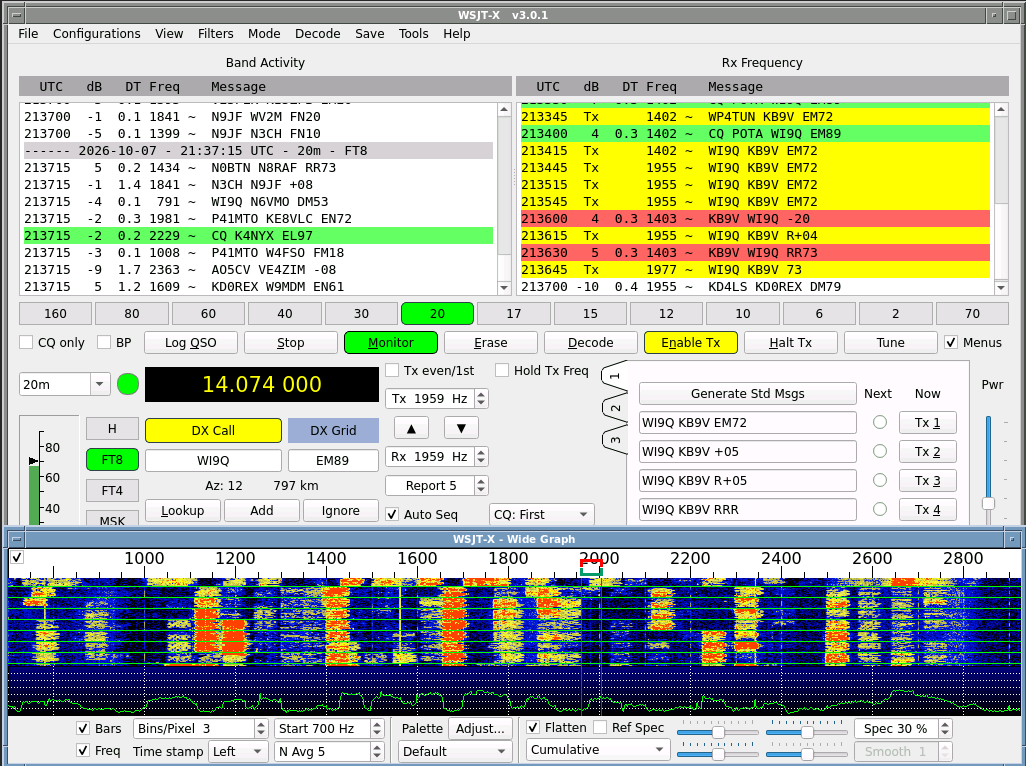
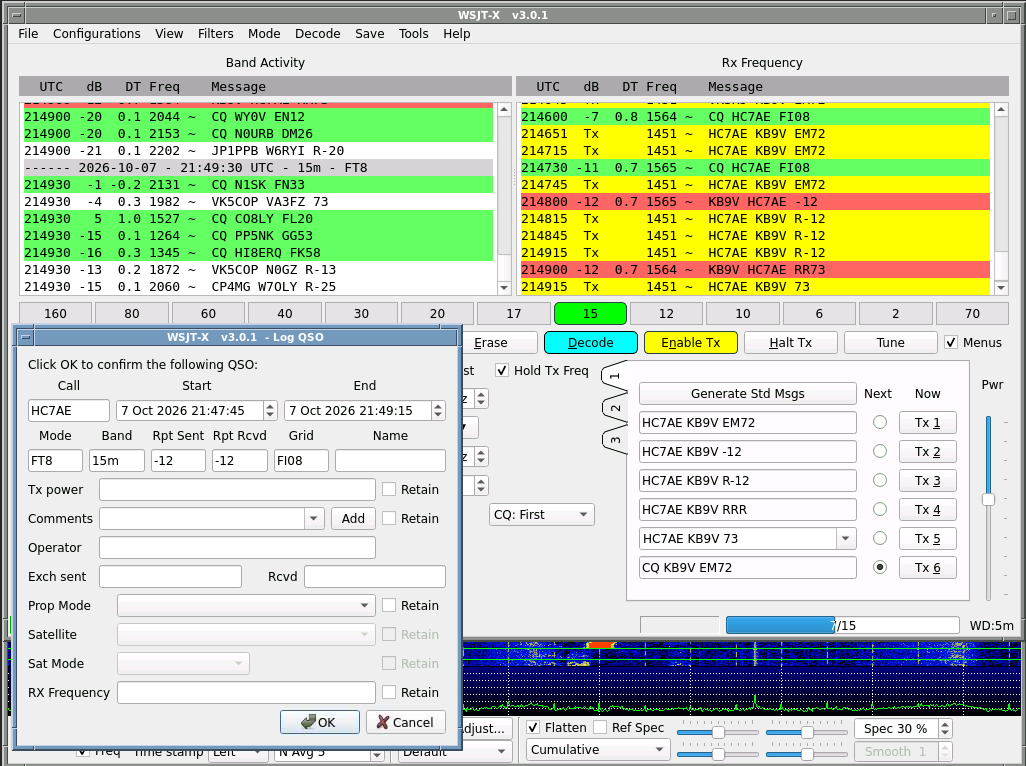
FT8, JS8Call and FLDIGI are working. Winlink Email is still having issues with CAT/PTT control... still working it that.
Amazing what the x6100 can do on battery (<5W out the antenna):
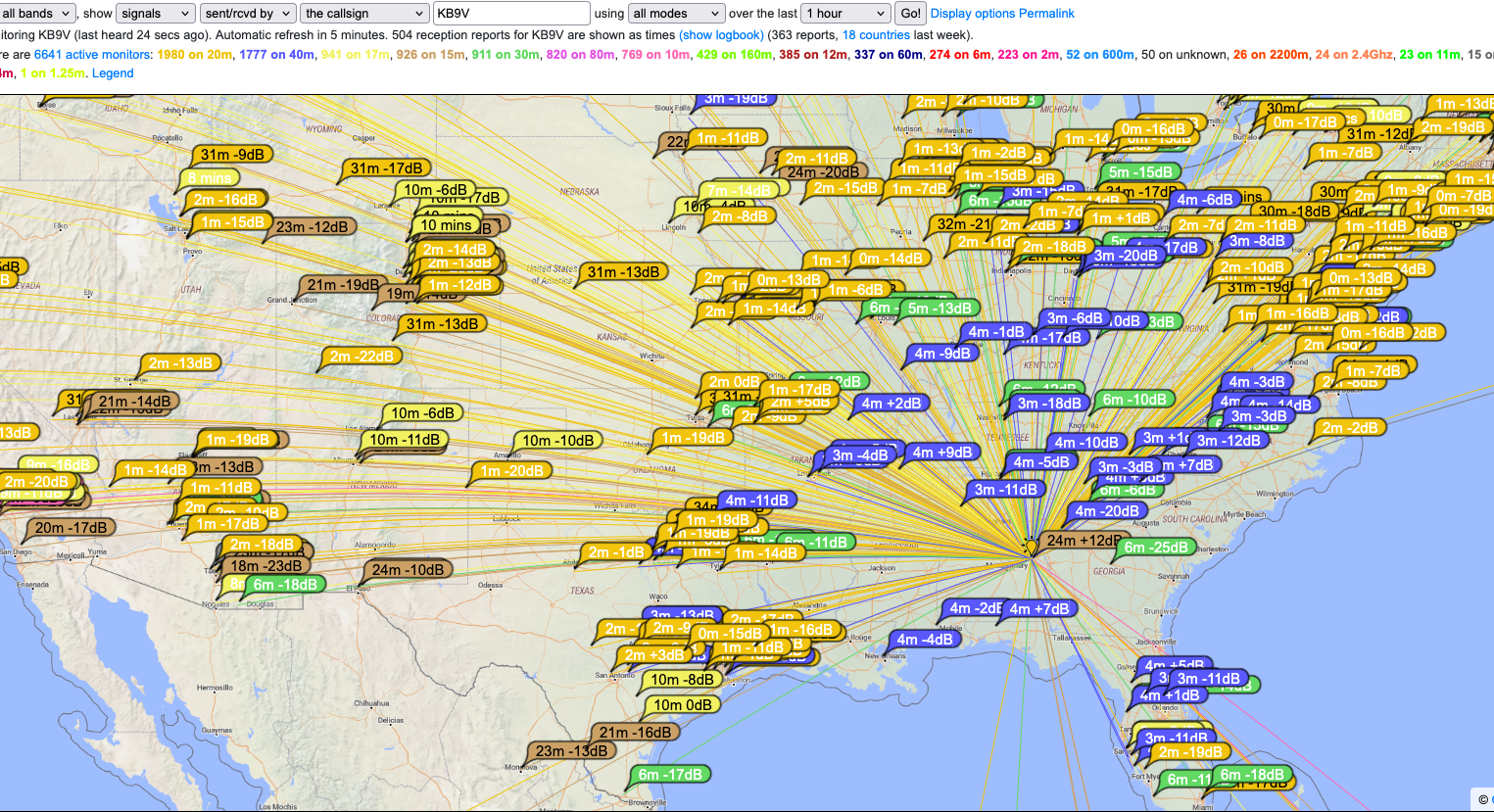
Screenshots of the DigiPi apps:
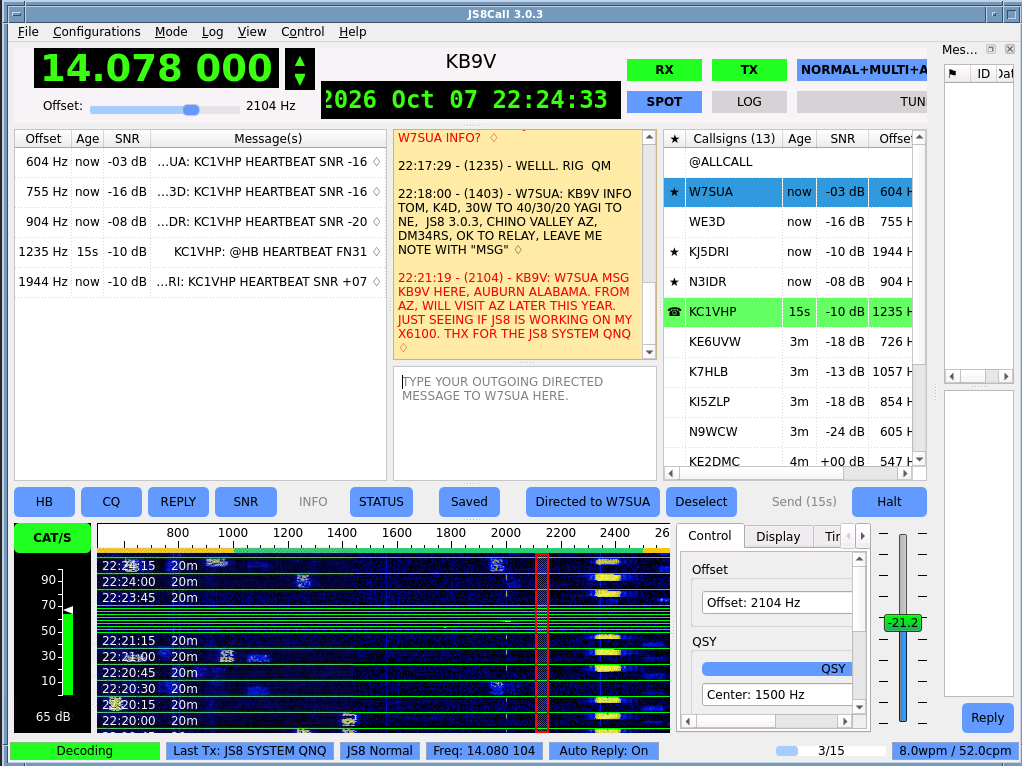
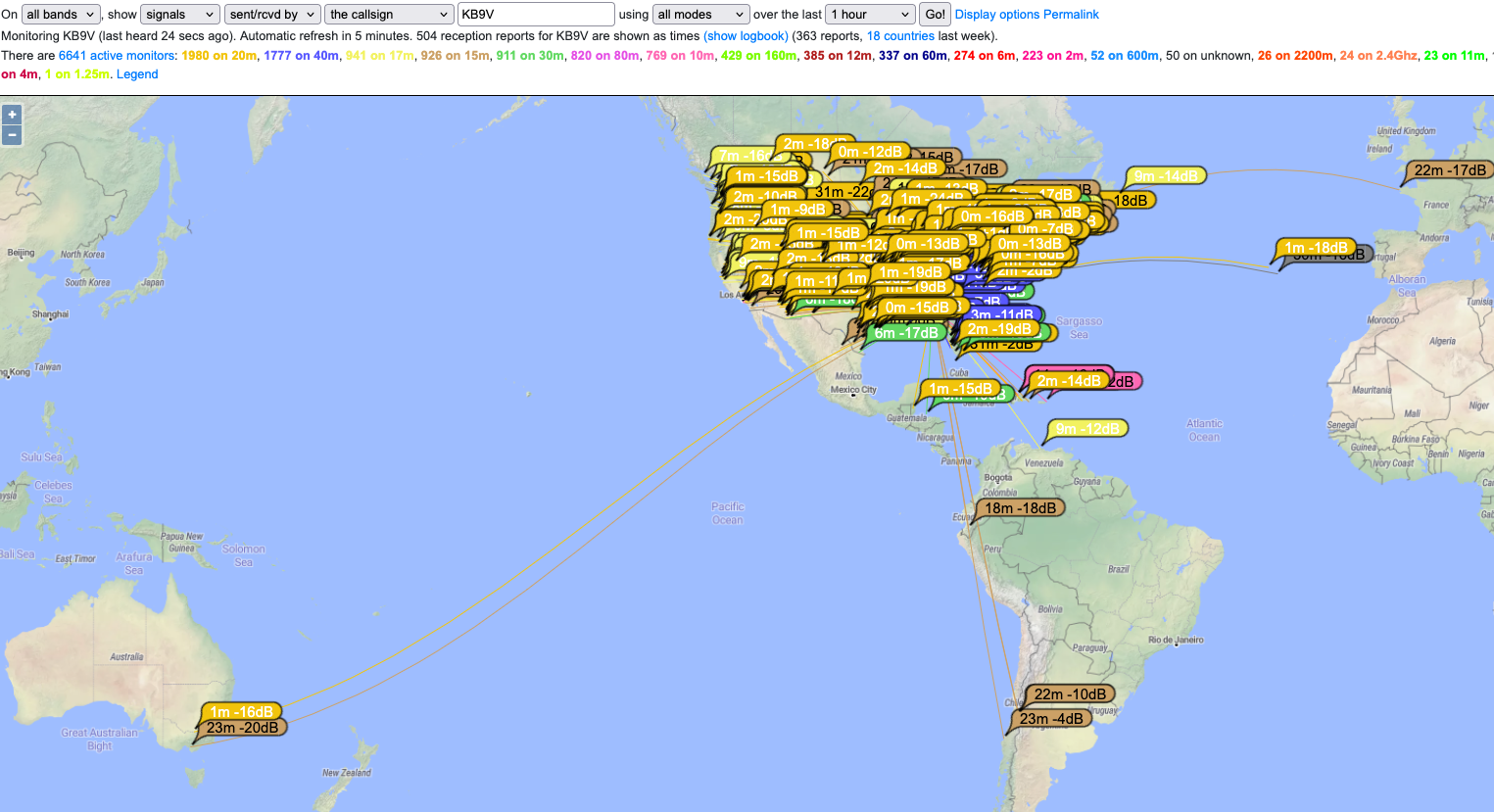
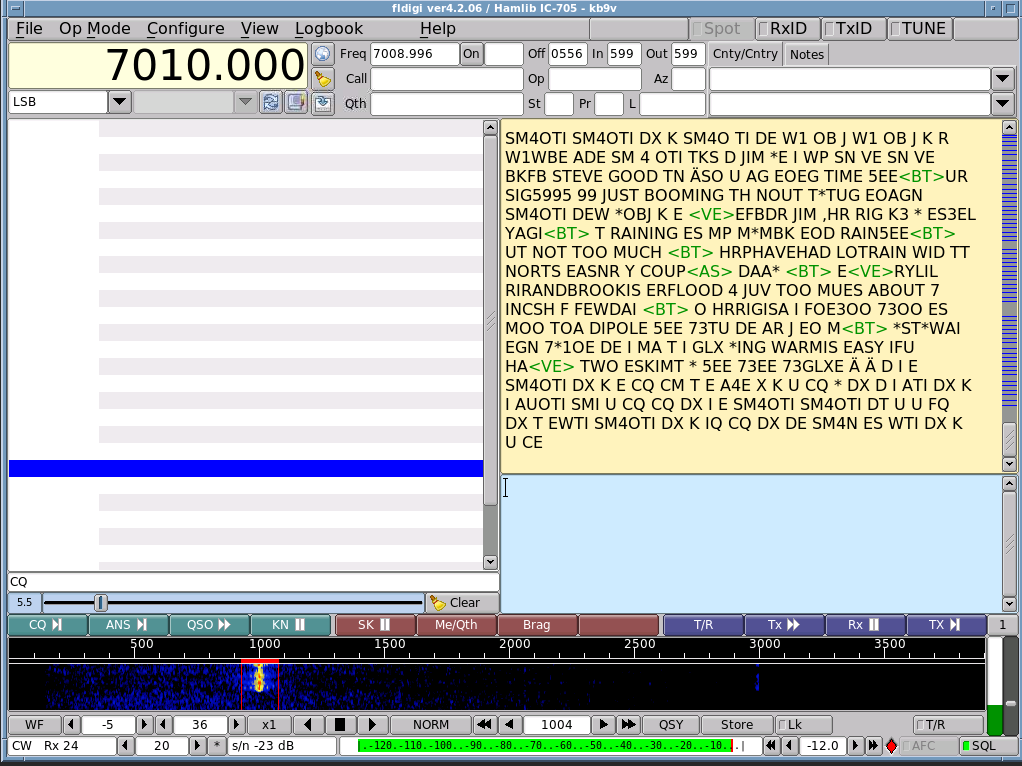
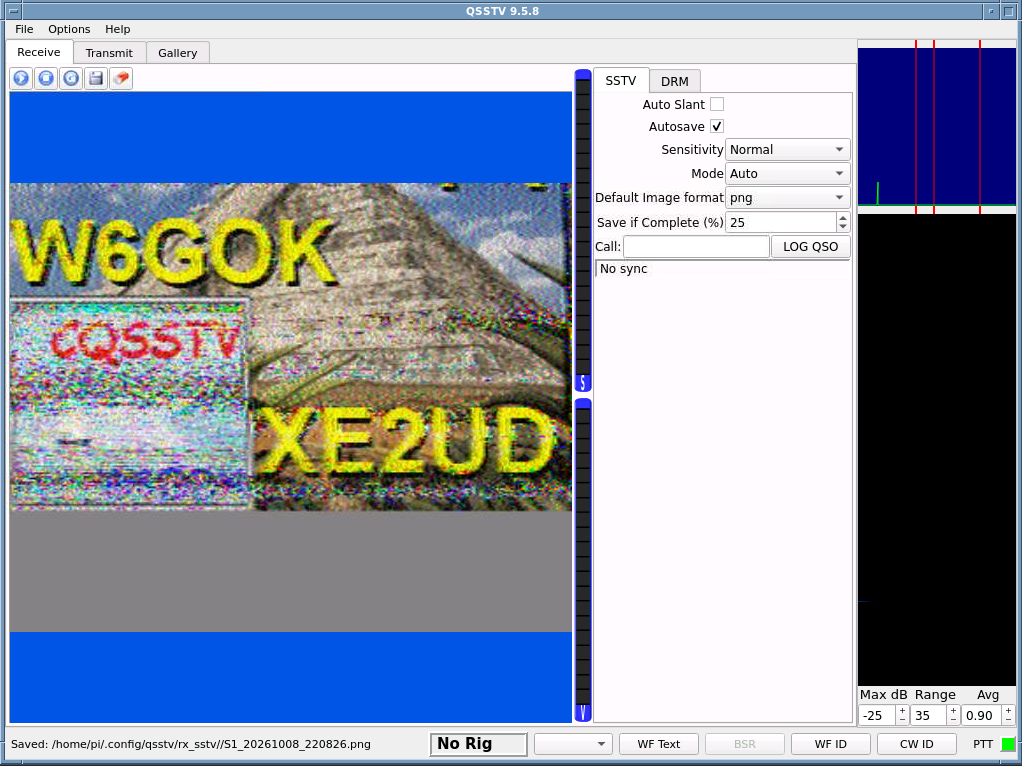
Problem #1, no radio models in HamLib would work with CAT/PTT control. Not the x6100, or the IC-705, which everyone says works. I tried this many times in early 2025 with no luck. I did resort to a 3rd party firmware to run FT8 on the radio itself, but that is all I could do.
Solution: Upgrade the X6100 Firmware. In December 2025, the X6100 got an update that fixed the broken CAT control in the previous firmware.
Specifically the upgrade addresses:
- Native Native Hamlib Support: Upgrading to the latest release (APP V1.2.0 / BASE V1.1.9) means you no longer have to trick DigiPi with IC-705 profiles. You can natively select Xiegu X6100 in your DigiPi settings.
- Fixed CAT/PTT Sync: The firmware changes repair the internal serial handshake protocols. A single USB cable will cleanly send both frequency information (CAT) and direct transmit triggers (PTT via CAT) with zero delays or timeouts.
- Upgraded Baud Rates: The modern firmware natively locks to a stable 115200 baud rate, significantly accelerating packet responses and eliminating the data buffer underruns causing DigiPi's serial line crashes.
I had to download the APP V1.2.0 image (dated Dec 2025) from the Xiegu EU website, the USA website did not have any firmware past 2024.
Upgrade is a two-step process, once you download and make an SD card with it (Using BalenaEtcher to make the upgrade SD Card)
There are videos and instructions online on how to update the x6100 firmware but these are the general guidelines:
First pass:
1. Turn off your X6100. Insert the micro SD card into the slot on the right side of the rig (contacts facing up, toward the screen) until it clicks.
2. Turn the radio on. The Xiegu logo will display, and it will immediately dump into a black Linux text screen automatically. Do not touch any buttons.
3. Let it run for about 2 minutes. Once it finishes copying the main operating system files, the radio will display a shutdown countdown and turn itself completely off.
4. CRITICAL:Remove the micro SD card from the radio now. (If you leave it in, the radio will just loop and reinstall the OS over and over again on the next boot).
Second Pass:
Connect your X6100 to an external 13.8V power supply. (The radio requires external voltage to trigger the internal chip flashing—do not try this on internal battery power).
- Ensure there are no USB cables plugged into the radio.
- Turn the radio back on.
- Short-press the SYSTEM SETTING menu button on the radio.
- Turn the large MFK knob to highlight FW UPGRADE and press down on the knob to enter the sub-menu.
- You will see a file listed on the screen. Press the button beneath the screen labeled [UPGRADE].
- A progress bar will appear and count up to 100% (takes about 20–30 seconds). When it says it is complete, press [QUIT].
- Power cycle the radio (turn it off, then turn it back on).
- Go back into SYSTEM SETTING.
- Scroll to find the FACTORY RESET or RESET ALL option
- power cycle the radio.
Done! Once I did this, the x6100 started to work a bit better
OH NO! After the firmware upgrade, the VFO is way way off in digital control. I guess there is a bug, 14.074 was showing as 14.025.... the fix is to go on the x6100 and go to radio settings1 and enable "Center Mode". That made the VFO perfectly aligned.
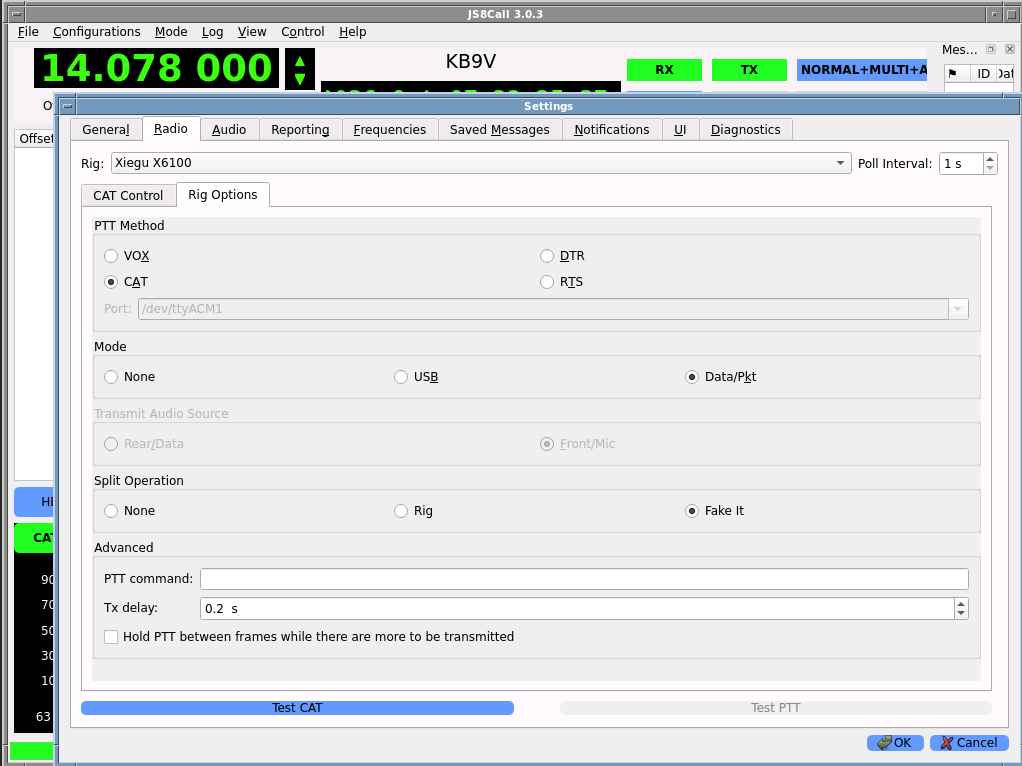
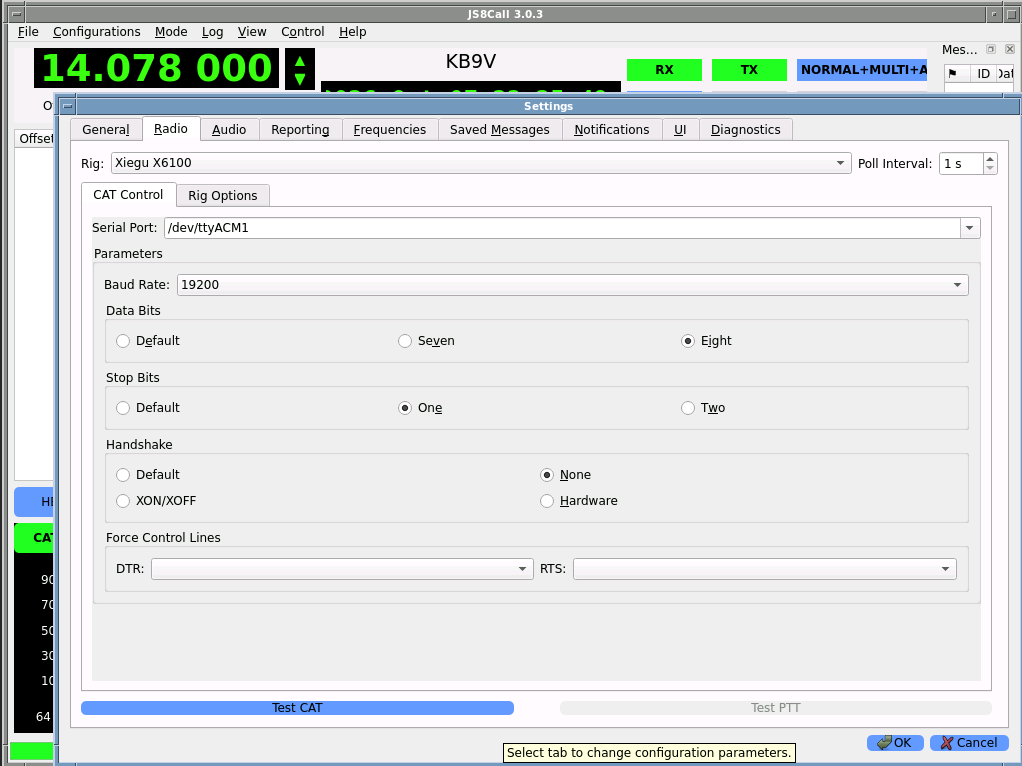
Reference screenshots of settings for DigiPi apps and the x6100:
WSJT-X FT8
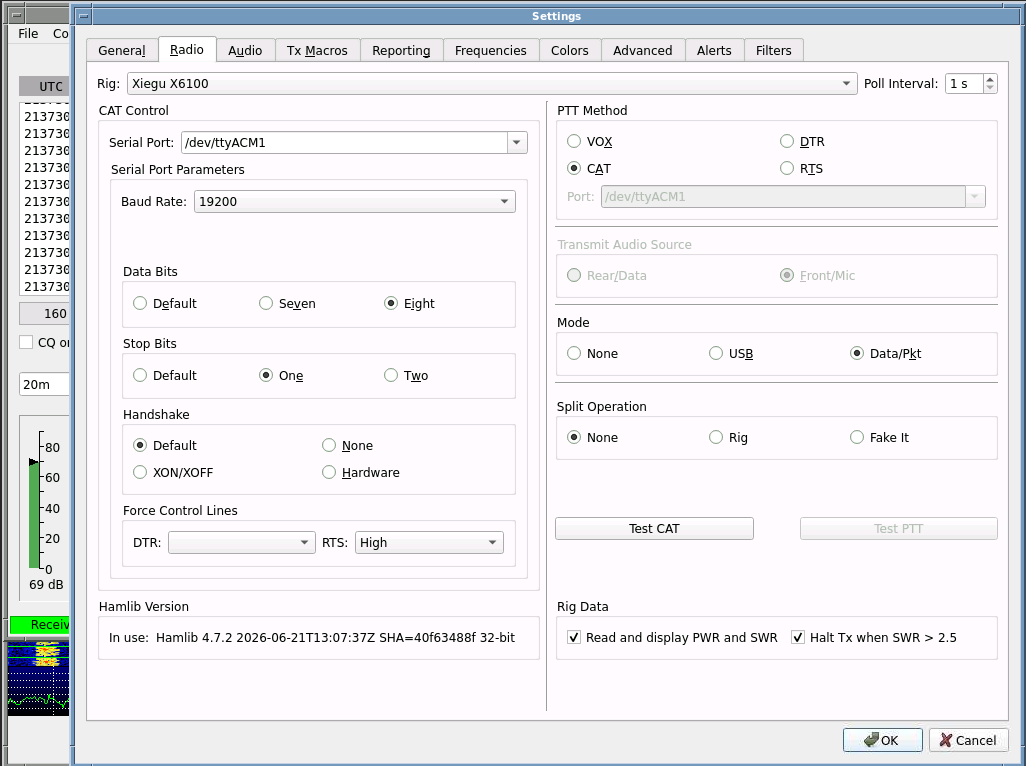
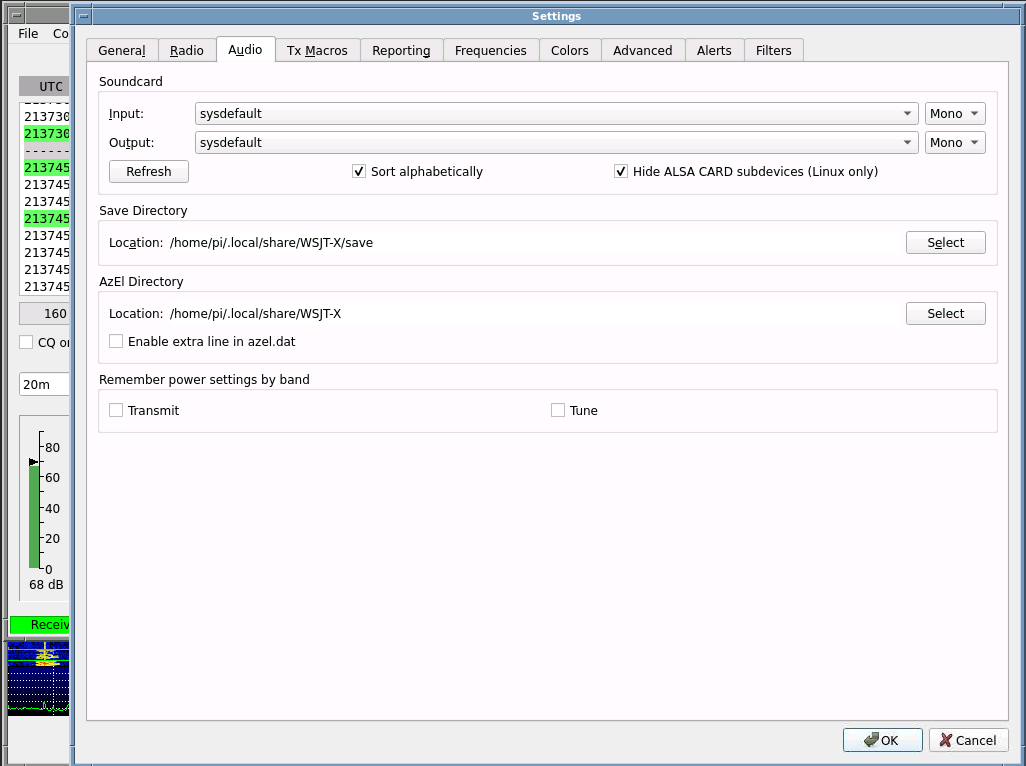
JS8Call
FLDigi
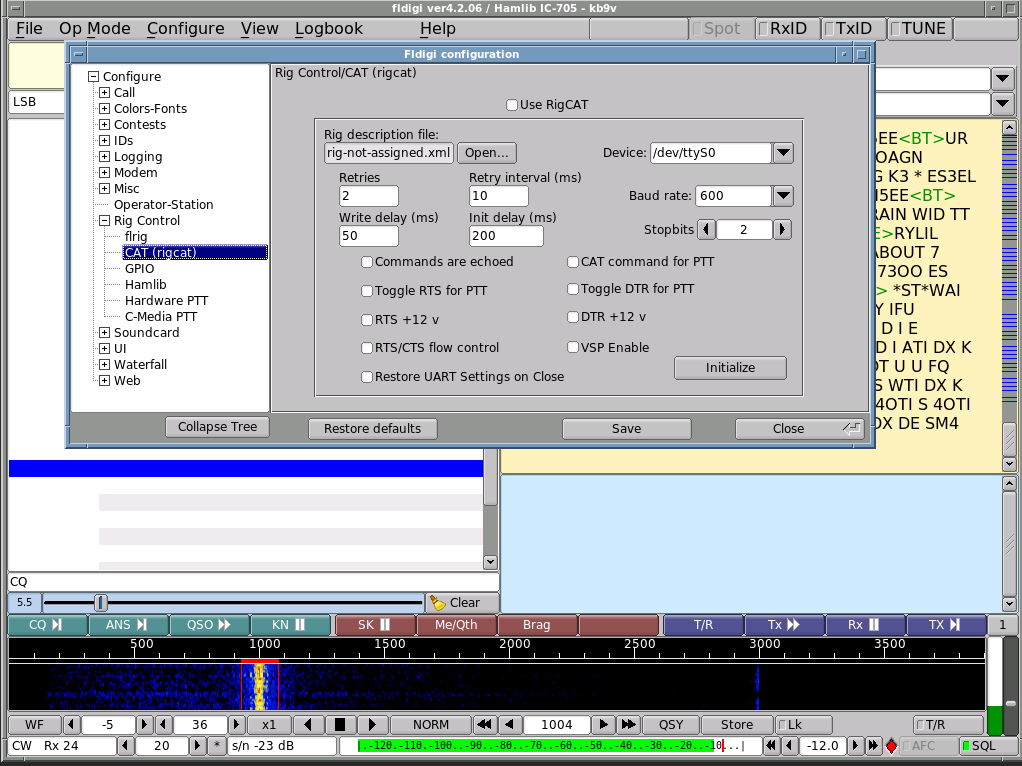
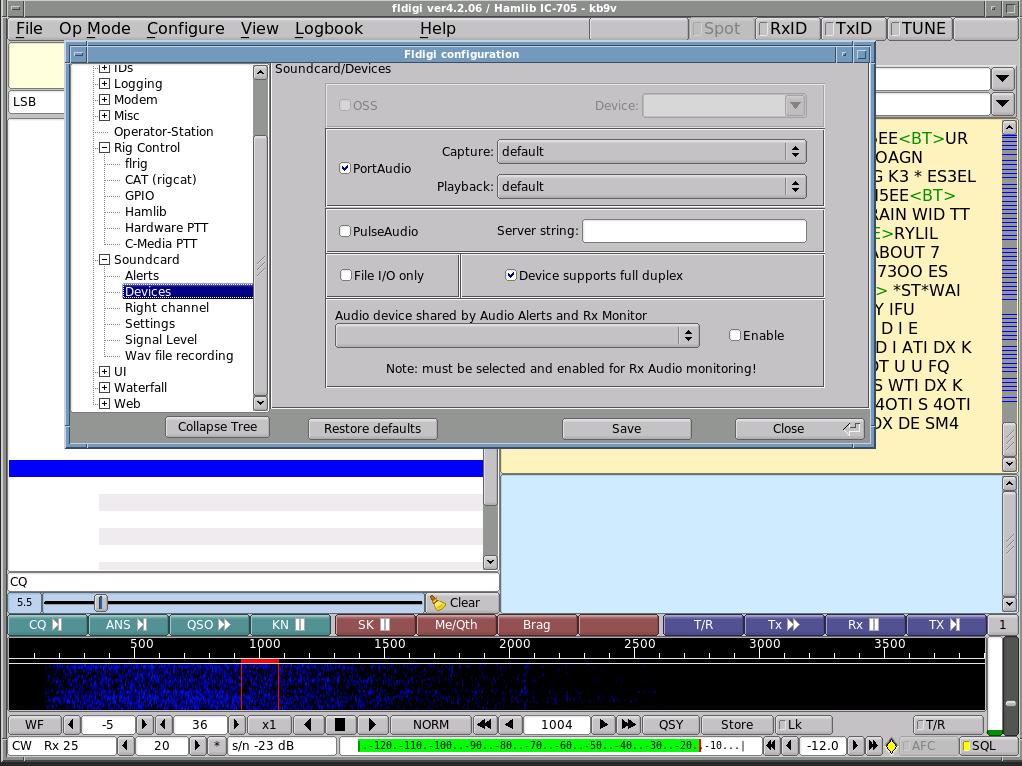
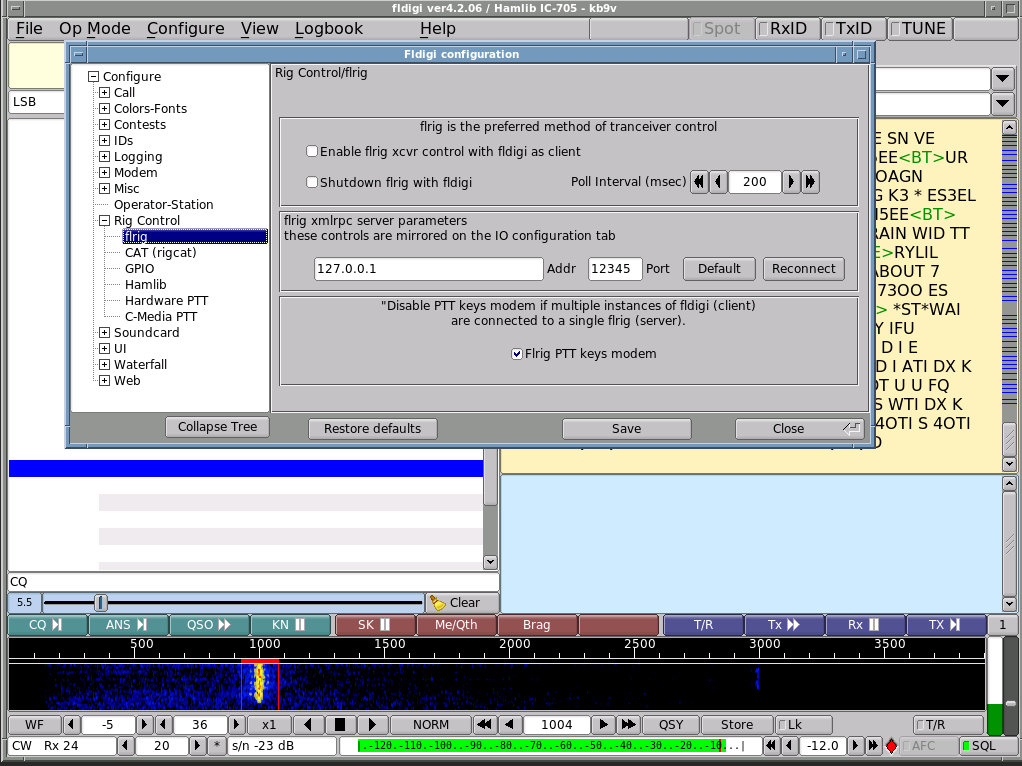
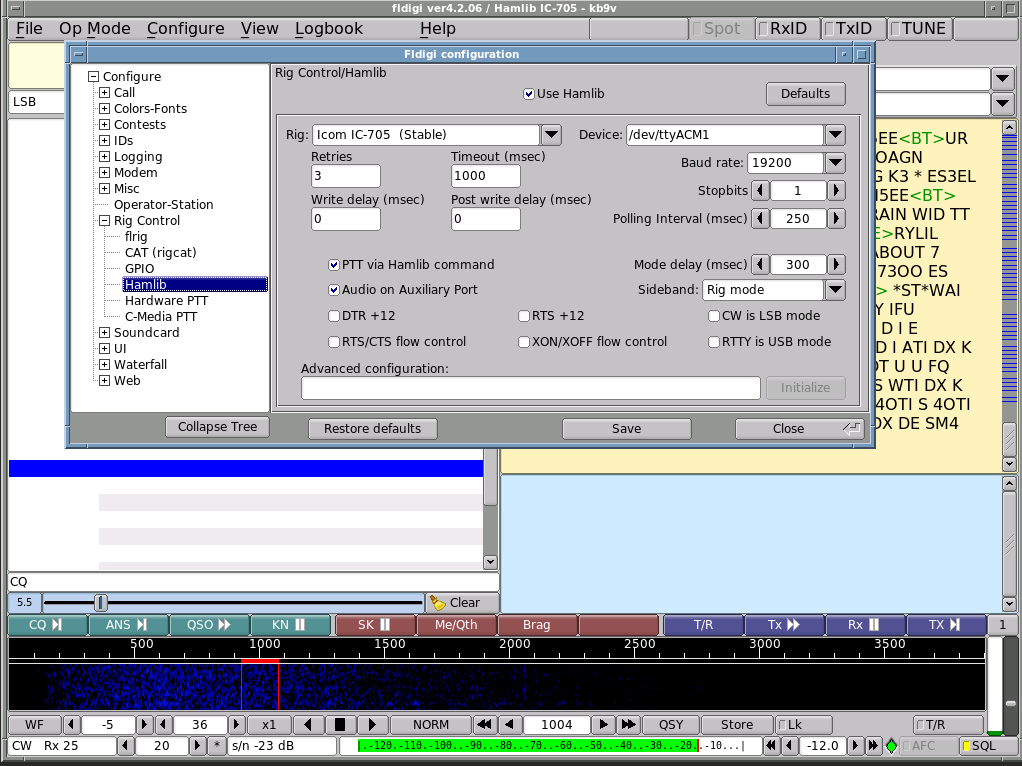
Xiegu X6100 + DigiPi 2.2.1 Operating Cards (Pocket reference style)
┌────────────────────────────────────────────────────────────────────┐
│ 🃏                X6100 RIG & TIME CONFIG                          │
├────────────────────────────────────────────────────────────────────┤
│ 📻 PHYSICAL RIG SETTINGS                                           │
│  • Mode Select     : USB-DIG (Crucial for all digital data streams)│
│  • Filter Bandwidth: FT8/JS8 = 3000Hz | CW/Fldigi = 500Hz-300Hz    │
│  • Physical Port   : DEV Port (Bottom USB-C on the right side)     │
│  • Pi Connection   : USB 2.0 Black Port (Blocks RF serial noise)   │
│                                                                    │
│ ⚠️ HARDWARE REFERENCE OSCILLATOR FIX                               │
│  • Problem: VFO reports correct frequency, but audio is shifted.   │
│  • Fix: Press [SYSTEM SETTING] -> [Setting-1]                      │
│         -> Toggle CENTER MODE to ENABLE                            │
│                                                                    │
│ 🕒 MANUAL TIME SYNC (No Internet, offline)                         │
│  • Problem: Raspberry Pi lacks an RTC battery; loses time on boot. │
│  • Run these 3 commands in the DigiPi Terminal Window:             │
│                                                                    │
│  1. sudo timedatectl set-ntp false                                 │
│                                                                    │
│  2. sudo date -s "2026-10-08 07:45:00"                             │
│     (Type current UTC/Local time; hit ENTER at exactly :00 seconds)│
│                                                                    │
│  3. timedatectl status                                             │
│                                                                    │
│ 📌 NOTE: Must repeat time sync every time DigiPi is power cycled!  │
└────────────────────────────────────────────────────────────────────┘
┌────────────────────────────────────────────────────────────────────┐
│ 🃏              WSJT-X / JS8CALL CONFIG                            │
├────────────────────────────────────────────────────────────────────┤
│ 💻 DIGIPI DASHBOARD LAUNCH                                         │
│  • Toggle WSJT-X or JS8Call to ON -> Click the blue app link.      │
│                                                                    │
│ ⚙️ RADIO TAB CONFIGURATION (File -> Settings -> Radio)             │
│  • Rig Profile     : Icom IC-705                                   │
│  • Serial Port     : /dev/ttyACM1                                  │
│  • Baud Rate       : 19200                                         │
│  • Data Bits       : 8                                             │
│  • Stop Bits       : 1                                             │
│  • Parity          : None                                          │
│  • Handshake       : None                                          │
│  • PTT Method      : CAT                                           │
│  • Mode            : Data/Pkt                                      │
│  • Split Operation : None                                          │
│                                                                    │
│ 🔊 AUDIO TAB CONFIGURATION (File -> Settings -> Audio)             │
│  • Input (Rx)      : Plughw: CARD=Codec, DEV=0 (or Default ALSA)   │
│  • Output (Tx)     : Plughw: CARD=Codec, DEV=0 (or Default ALSA)   │
│                                                                    │
│ 🚨 TROUBLESHOOTING                                                 │
│  • Green CAT Button turns Red? Another app is locking ttyACM1.     │
│  • Audio works but no TX? Verify Rig is physically on USB-DIG mode.│
└────────────────────────────────────────────────────────────────────┘
┌────────────────────────────────────────────────────────────────────┐
│ 🃏           FLDIGI RIG CONTROL & WATERFALL                        │
├────────────────────────────────────────────────────────────────────┤
│ 💻 DIGIPI DASHBOARD LAUNCH                                         │
│  • Toggle FLDigi to ON -> Click the blue link to load browser GUI. │
│                                                                    │
│ ⚙️ RIG CONTROL CONFIGURATION (Configure -> Config Dialog)          │
│  1. Expand "Rig Control" -> Select "flrig" -> UNCHECK Client box.  │
│  2. Select "Hamlib" sub-menu -> Check [X] Use Hamlib               │
│  3. Match these fields exactly:                                    │
│     • Rig          : Icom IC-705 (Beta)                            │
│     • Device       : /dev/ttyACM1                                  │
│     • Baud Rate    : 19200                                         │
│     • Stop Bits    : 1                                             │
│  4. Check [X] PTT via Hamlib command                               │
│  5. Click INITIALIZE (VFO display will instantly turn black/live). │
│                                                                    │
│ 🎛️ WATERFALL OPTIMIZATION (Fixes Solid Yellow Screen)              │
│  • Upper (Top Box)   : 0  (or -10 to drop noise ceiling)           │
│  • Range (Bottom Box): 60 (Expands dynamic contrast window)        │
│  • Audio Trim Slider : Drag vertical slider at bottom-right down   │
│                        until the waterfall drops to dark blue.     │
└────────────────────────────────────────────────────────────────────┘
And here is a little band/mode reference chart:
┌─────────────────────────────────────────────────────────────────┐
│ 🃏       STANDARD US DIGITAL FREQUENCIES (MHz)                  │
├─────────────────────────────────────────────────────────────────┤
│ BAND │  FT8   │ JS8CALL│ RTTY/DATA │  PSK31  │  SSTV  (Analog)  │
├──────┼────────┼────────┼───────────┼─────────┼──────────────────┤
│ 80m  │ 3.573  │ 3.578  │ 3.580+    │ 3.580   │ 3.845 / 3.730    │
│ 40m  │ 7.074  │ 7.078  │ 7.080-7.10│ 7.070   │ 7.171 / 7.172    │
│ 30m  │ 10.136 │ 10.142 │ 10.140+   │ 10.140  │ N/A (No Phone)   │
│ 20m  │ 14.074 │ 14.078 │ 14.080+   │ 14.070  │ 14.230 (Primary) │
│ 17m  │ 18.100 │ 18.104 │ 18.105+   │ 18.100  │ 18.160           │
│ 15m  │ 21.074 │ 21.078 │ 21.080+   │ 21.070  │ 21.340           │
│ 12m  │ 24.915 │ 24.922 │ 24.920+   │ 24.920  │ 24.975           │
│ 10m  │ 28.074 │ 28.078 │ 28.080+   │ 28.120  │ 28.680           │
│ 6m   │ 50.313 │ 50.318 │ 50.600+   │ 50.290  │ 50.300           │
│ 2m   │ 144.174│ 144.178│ 144.600+  │ 144.140 │ 145.500 (FM)     │
├──────┴────────┴────────┴───────────┴─────────┴──────────────────┤
│ 💡 OPERATING NOTES:                                             │
│ • Always run USB-DIG mode (even on 40m/80m where voice uses LSB)│
│ • 30m has strict 200W limit in the US. No Phone modes allowed.  │
│ • 6m/2m frequencies listed are generally for SSB/Weak Signal,   │
│   except for 2m SSTV which is typically run on simplex FM.      │
└─────────────────────────────────────────────────────────────────┘
INFO:
DigiPi v2.2.1:


Raspberry Pi:
 The Mushroom Masqué